Learners can now attach PDFs from the home page chat, choose exactly how Coach contacts them, and read Coach's answers in clean, formatted tables. Partners can also end every widget conversation with a next step of their own and search and organize learners in the webapp seamlessly.
Attach a PDF right from the home page
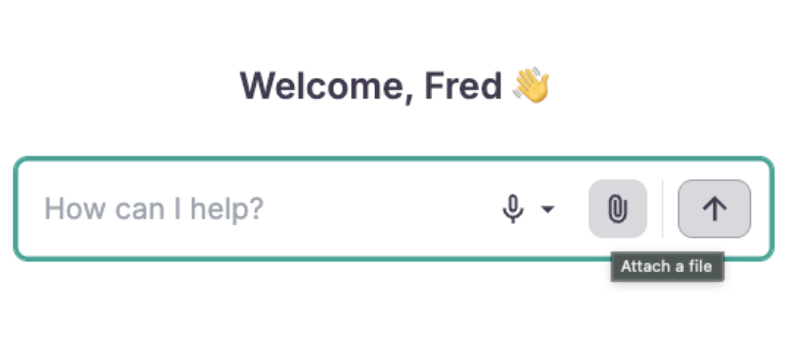
Learners can now attach PDFs in the home page chat box, the same way they could already inside an activity. A resume or cover letter can go straight into the conversation, so feedback starts right away. The attach button now highlights on hover and shows a tooltip. "Try again" on a failed upload also works now. Before, a dropped upload could end the session. Now the job seeker knows right away if the upload did not go through.
Choose how Coach reaches you
Account Settings has a new Communication settings section that puts message preferences in one place.
Pick a channel for each topic. Choose texts, email, or both.
Pause with one switch. Turn off all non-essential messages at once and turn them back on whenever you like.
Required messages stay on. Account and safety messages appear in an always-on row.
Texts always need a verified phone number
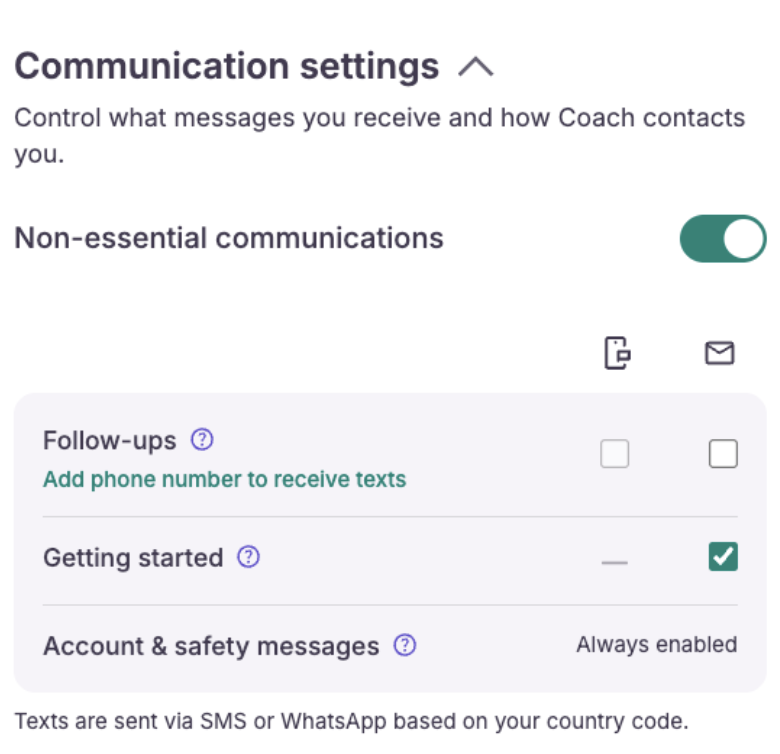
Learners can choose exactly how they want to be messaged and pause unimportant messages with one click.
Tables that look like tables
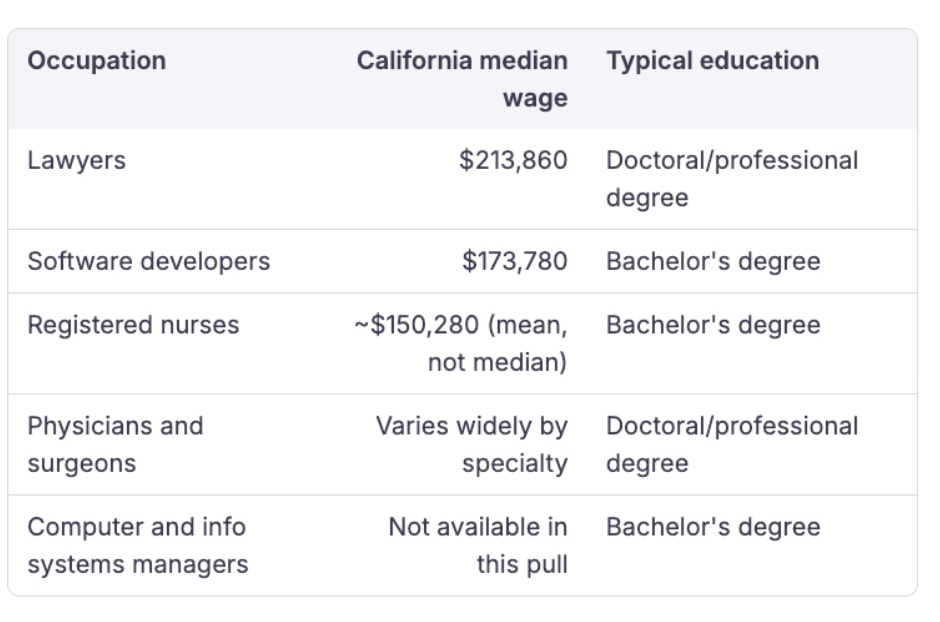
When Coach replies with a table, it now appears as a formatted table instead of raw characters. Comparisons, schedules, and lists of options are much easier to read. In saved messages and chat history previews, table content appears as plain inline text.
The Coach widget gets the same improvement. Tables there use the partner's configured Coach text color for borders and header shading, so they match the partner's branding. Tables wider than the chat bubble scroll sideways.
End every widget chat with a next step from the institutional partner
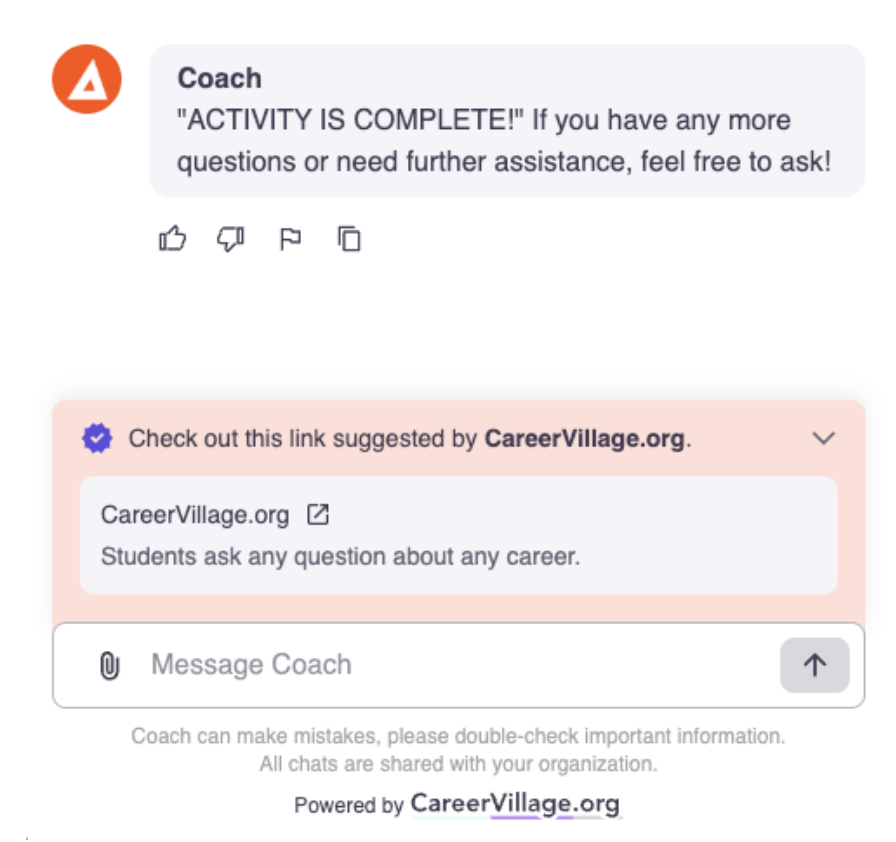
Partners using Coach can now set up their own resources for each widget activity. When a learner finishes an activity, Coach picks the resource that fits best, and the widget shows it at the end of the conversation.
This gives partners a reliable way to connect a Coach activity to the next step in their program, such as a survey or a resource of their choosing.
Find, Add, and Manage Learners Faster: New Educator and Admin Tools
Running a career support program means keeping the learner roster accurate and making sure the right people see the right data. Three new Coach updates make both easier: a searchable learner roster, one-step CSV uploads, and partner dashboards that show only the sites each person belongs to.
Search and filter your Learner Roster
Educators can now search and filter their learner roster by learner name, by cohort, or both. Looking for one learner, or only the learners in a single cohort, no longer means scrolling the whole list.
Every active filter appears as a chip above the roster. To change your view, remove a chip and the roster updates.
Add and update learners in one CSV
Admins and advisors can now manage the whole roster with a single CSV. The same upload adds new learners and updates existing ones, so you no longer need separate steps.
You also see what will change before anything is saved:
Row-by-row preview. Each row is tagged New or Update, and the confirmation shows the same split.
LinkedIn URLs without re-inviting. Re-upload a CSV that includes a linkedin_url column to fill in LinkedIn URLs for current learners. They don't need to be invited again.
Early error flags. Bad LinkedIn URLs are flagged at upload, with the row number, so you can fix them before saving.
Clean discards. If you discard a CSV, its rows are cleared.
One CSV now adds new learners and updates existing ones, with a clear preview of what will change and early flags for bad URLs.
Dashboards that show only your sites and role
Partner admins now see data only for the sites they belong to. This applies to the Home, Insights, Usage Tracking, and Impact Data dashboards. Each dashboard also checks the person's role. Advisors and admins have separate access, so advisors can't open admin dashboards. That keeps data limited to the people it's meant for and makes it clear who can see what. If a dashboard fails to load, you'll now see "Couldn't load this dashboard" instead of a page that loads forever.
Advisors and admins have separate access roles to keep data secure. No more confusion about access controls.
What's next
These changes are part of our broader work on Coach tools for educators, advisors, and partner admins. Try the new roster search, your next CSV upload, and your site-specific dashboards, and tell us what would make them work better for your program. If you'd like to see these updates in action or talk about how Coach could support your learners, we'd be glad to connect.
